

Your Client Just Gave You MUAA Access — Now What?
You’ve done everything right. You learned what an eBay VA does (Part 1). You sharpened your skills (Part 3). You wrote a winning proposal (Part 5), priced your services properly (Part 7), and your client set up MUAA access for you (Part 8).
Now you’re staring at a screen full of tabs, graphs, numbers, and alerts. Welcome to eBay Seller Hub — the cockpit where you’ll spend every working hour as a VA.
If this is your first time inside Seller Hub, it can feel overwhelming. But here’s the good news: by the end of this guide, you’ll know exactly what each tab does, what to check first, and what your Day 1 report to the client should look like — with real screenshots from an actual seller account.
What you’ll learn: Seller Hub overview · Listings tab walkthrough (with real screenshots) · Orders management · Performance metrics · Marketing tools · Your Day 1 VA checklist
What Is eBay Seller Hub?
Seller Hub is eBay's all-in-one control panel. It replaced the old "My eBay" dashboard and brings everything into one place: listings, orders, performance, payments, and marketing tools. As a VA, this is where you'll work every single day.
Understanding the Navigation — Overview at a Glance
When you first log in via MUAA, you land on the Overview tab. Before clicking anything, study the top navigation bar — these tabs are your main tools:
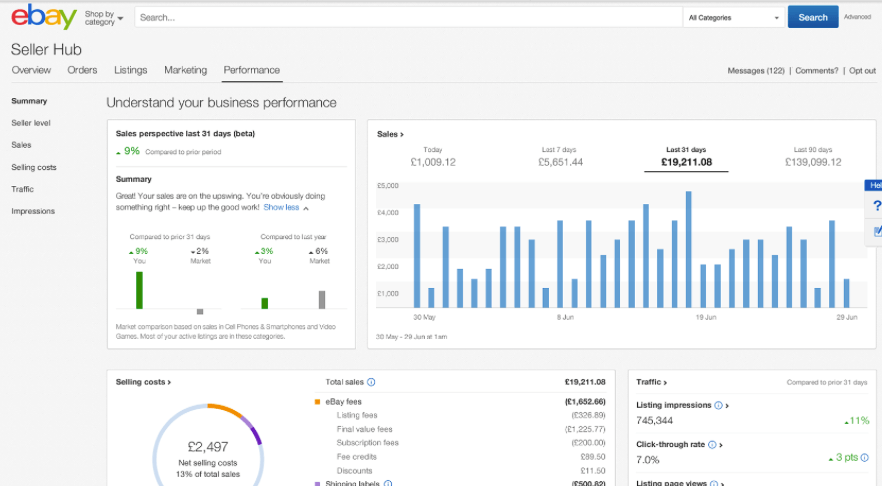
The top navigation tabs you'll use most as a VA:
- Overview — Sales summary, alerts, and account snapshot
- Orders — New orders, tracking, returns management
- Listings — Your client's product catalog — most VA work happens here
- Marketing — Promotions, Promoted Listings, discounts
- Performance — Seller Level, defect rate, health metrics
- Payments — Payout history and upcoming payouts
- Research — Terapeak market data (powerful tool!)
Tab 1: Overview — Reading Your Client's Dashboard
The Overview tab shows you three key things at the top:
- Sales Summary — Revenue for today, last 7 days, last 30 days
- Listing Performance — How many views, watchers, and clicks listings are getting
- Account Alerts — Any issues eBay wants the seller to address immediately
Tab 2: Listings — Where VAs Spend Most of Their Time
The Listings tab is your main workspace. Here you'll find all of your client's products organized by status:
- Active — Currently listed and visible to buyers
- Sold — Items that have been purchased
- Unsold — Ended without a sale — great candidates to relist or improve
- Scheduled — Listings queued to go live at a future time
- Draft — Work-in-progress listings not yet published
When you click Edit on any listing, you enter the full listing form. Let's walk through it section by section:
Section A: Photos & Video
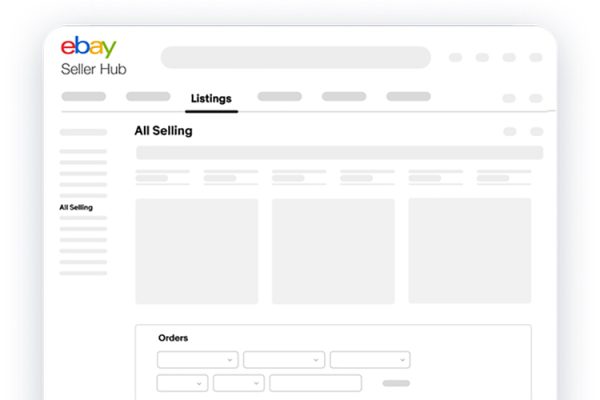
The first section shows the photo grid. eBay allows up to 24 photos. As a VA, your job here is to:
- Check if photos meet eBay standards (white background, 500×500px minimum)
- Replace blurry or low-quality photos if the client sends better ones
- Never delete photos without checking with the client first
- The Title field (80-character limit) is directly below the photos
Section B: Item Specifics

Item Specifics are the structured data fields that power eBay's search algorithm (Cassini). They include:
- Required fields (marked with *) — Brand, UPC/EAN, Condition — must be filled
- Additional specifics — Color, Size, Material, MPN (Manufacturer Part Number)
- Category-specific fields — Vary depending on the product category
Section C: Description & Pricing

The Description section is where you write the full product details. Key rules:
- Use HTML formatting (eBay's description editor supports basic HTML)
- Include: what it is, key features, dimensions/specs, what's in the box, compatibility
- Add return and shipping reassurance to reduce buyer anxiety
Below Description, you'll find:
- Location — Ship-from address (important for delivery time estimates)
- Pricing — Buy It Now price, Best Offer settings, quantity
Section D: Shipping, Returns & Publish

The final section covers logistics:
- Shipping — Select carrier (UPS, FedEx, USPS etc.), set handling time, weight/dimensions
- Returns — Return window (14 or 30 days), who pays return shipping
- Promote Your Listing — Option to run Promoted Listings ads (check with client before enabling)
- Publish/Revise — The big blue button at the very bottom — click only when everything is verified
Tab 3: Orders — Managing Buyer Transactions
The Orders tab is your second most important area. Here's what you'll find:
- Awaiting Shipment — Paid orders that need a tracking number uploaded
- Shipped — Orders in transit — monitor for delivery confirmation
- Returns/Cancellations — Handle these carefully; wrong handling hurts seller metrics
Our team has helped 100+ Pakistanis set up and grow on eBay. For personalised guidance, check our packages.
View Packages WhatsApp UsTab 4: Performance — Your Client's Account Health
The Performance tab shows how eBay rates your client as a seller. Key metrics to monitor:
- Seller Level — Below Standard / Above Standard / Top Rated (aim for Top Rated)
- Transaction Defect Rate — Must stay below 2% (ideally under 0.5%)
- Late Shipment Rate — Must stay below 5%
- Cases Closed Without Resolution — Must stay at 0.3% or below
- Tracking Uploaded On Time — Must be 95%+ for Top Rated status
If you see any metric approaching the threshold, alert your client immediately — this takes priority over all other tasks.
Tab 5: Marketing — Promotions & Advertising
The Marketing tab is where you manage sales and ads. Common VA tasks here:
- Promotions Manager — Create % off sales, BOGO deals, or free shipping thresholds
- Promoted Listings — eBay's internal ad platform. You set an ad rate (% of sale price), and listings appear higher in search. Only pay when the item sells.
- Markdown Manager — Temporarily reduce prices for a sale event
Your VA First-Day Checklist
✅ Day 1 Action Plan for VAs
- Log in via MUAA (never use client's password — see Part 8)
- Check Overview tab — note any eBay alerts or red flags
- Check Performance tab — are all metrics green? Document current scores
- Check Orders tab — any unshipped orders? Flag to client if tracking is needed
- Count active listings in Listings tab — how many active, unsold, drafts?
- Look for any "Unsold" or "Ended" listings that need attention
- Send client a brief status report: performance scores + orders needing attention + any alerts
Common Mistakes New VAs Make in Seller Hub
❌ Don't
- Jump straight to editing listings without checking Performance first
- Click "Publish" without reviewing every field
- Ignore Order alerts thinking someone else will handle them
- Enable Promoted Listings without client approval
- Make price changes without informing the client
✅ Always Do
- Start every session on the Overview tab
- Check Orders tab daily for unshipped items
- Keep a simple log of changes made each session
- Ask client before making any major changes
- Send a weekly brief report to your client
🚀 Ready for Part 10?
Next, we'll cover eBay Listing Optimization — how to write titles, fill item specifics, and structure descriptions that actually rank in eBay search.
View Full Series